Sunday, June 9, 2013

Mapping a Business on Bing Maps - IT Asset Mapping

Mapping a Business on the SharePoint Bing Mapper
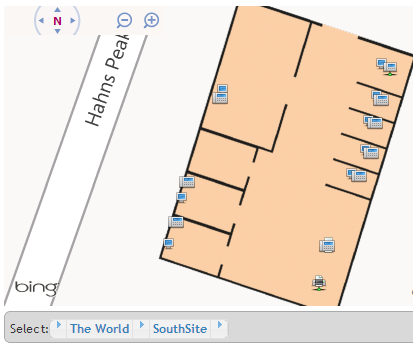
IT assets mapped on the SharePoint
 Bing Mapper.


In this post we will be looking at mapping business assets on Bing Maps using the SharePoint Bing Mapper. This blog post will be building on the previous post, Mapping a Business on Bing Maps - Employee Mapping.  I will cover a few basics about using the tool and of course include a live demo.

Hopefully as I go through some of these features it will help spark ideas about how the mapper can help with business location information.  So far we have mapped the physical structure (the campus and the buildings), assigned employees to cubicals,  offices and work areas.  In this post we will be adding IT equipment to our map.  One point I want to stress is that the mapper has flexible data capabilities.  We could be adding power outlet locations, vending equipment or any other data to the map without ever going back to a developer.  

For this post I have added desktop computers and phone sets to the 2nd floor of building 1.  The same as with showing a person on the map, you can hover over the item to view the name and click it to get the detailed description.  Take a look at the included images to see how filtered views can be presented (for example, you might want to view only desktop computers over 3 years old).  And yes, you could use the mapped items to assign work orders (that would be slightly past out of the box capabilities but would by a fairly easy extension).  


Live demo of a filtered view showing phone systems at their installed location:


I have created a fairly simple demo, the detail popup as well as the Phone Systems table can be modified to include any desired data.

Here are a few more screenshots illustrating the features presented:
All persons and assets are
showing in this view.


A filtered view of IT assets showing
desktop computers.


A filtered view of IT assets showing
phone systems.


Adding a phone system to a IT
asset tracking list on the
SharePoint Bing Mapper.

Friday, May 31, 2013

Mapping a Business on Bing Maps - Employee Mapping

Mapping a Business on the SharePoint Bing Mapper 


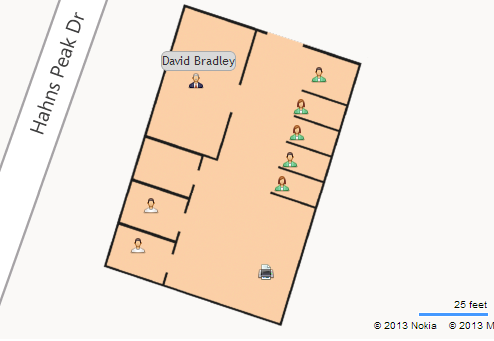
In this post I will be demonstrating how to map a business on Bing maps.  This post will focus on showing employees on a Bing Map using indoor mapping, thereby creating a directory of employees.  In upcoming posts I will show other views that will include creating directories of conference rooms (including scheduling), mapping IT equipment to locations, etc.. 

Indoor map of an office on Bing Maps showing employee's assigned locations.

Live Demonstration!

Navigation Tips:
  1. Use the breadcrumb to select building, switch floors, change sites and zoom to offices.
  2. Use the search box in the Employee Directory list control to filter employees by name or job title.  Just enter the first few letters to narrow results.
  3. In the Employee Directory list highlighting an employee will center them on the map.
  4. Hovering over an employee will show their name.
  5. Clicking an employee will give you a detailed information.


Pretty neat stuff.  Seams to me that any business with with more than a handful of employees could use a director system like this.  Indoor mapping used to manage employees locations!  Great additions to an intranet and a great tool for HR.

Here is a series of screen shots of how easy it is to move employees from one location to another (switch offices or desks):

Select employee with a right click, select move from action menu.

Move the cursor to the new location and double click.


Confirm that you intended to move the employee.

That's it, the employee is now in their new location, directory updated!


Thursday, April 25, 2013

Importing SharePoint List Items to a CSV File via Powershell


As a follow-up to my post titled "Exporting SharePoint List Items to a CSV File via Powershell" I am posting this script that I use for importing SharePoint ListItems via Powershell.  It works in conjunction with the exporting script.

This script borrows heavily from Brian Farnhill's  excellent post Populate a SharePoint list with items in a CSV file using PowerShell .

Key additions for the way I use it are the exclude columns array and the iterating of all lists in a web then attempting to load the list items for that list.  It accepts 2 parameters, the url of the web to import to and the path to the folder with the csv files containing the list data.

I'm sure there is room for improvement, but it does what I want.  


Param(
 [Parameter(Mandatory=$True)]
 [string]$webUrl,
 [Parameter(Mandatory=$True)]
 [string]$csvFolderPath
)
$web = Get-SPWeb $webUrl
write-host ("Web Title: " + $web.Title)
$arrExcludeCols = "Workflow Instance ID","Folder Child Count","Approver Comments","GUID","Modified","Modified By","Is Current Version","Edit Menu Table Start",
      "Edit","ScopeId","Level","Encoded Absolute URL","Select","Item Child Count","ProgId","Order","Workflow Version","Edit Menu Table End","Item Type",
      "Has Copy Destinations","owshiddenversion","File Name","Name","Server Relative URL","Created By","Unique Id","Sort Type","Effective Permissions Mask",
      "HTML File Type","URL Path","Copy Source","File Type","Attachments","Property Bag","ID","Type","Approval Status","Version","UI Version","Client Id",
      "Path","Created","Instance ID"
     
#foreach($list in $web.Lists)
for($i=0; $i -le $web.Lists.Count; $i++)
{
    $list = $web.Lists[$i]
    $csvPath = $csvFolderPath + '\' + $list.Title + '.csv'
    write-host ("Importing: " + $csvPath)
    try {
      $csvRow = $null
      Import-Csv $csvPath | ForEach-Object {
        $csvRow = $_
        $newItem = $list.Items.Add()
        Get-Member -InputObject $csvRow -MemberType NoteProperty | ForEach-Object {
        $property = $_.Name
        if ($arrExcludeCols -notcontains $property)
        {
        #write-host -foregroundcolor yellow ($property + ' : ' + $csvRow.$property)
        try {
            $newItem.set_Item($property, $csvRow.$property)
        }
        catch  [Exception]
        {
            write-host -foregroundcolor red ($_.Exception.Message)
           
        }
        }
        $newItem.Update()
        }
      }
    }
    catch  [Exception]
    {
        write-host -foregroundcolor red ($_.Exception.Message)
        #write-host -foregroundcolor red ("Could not import list items.")
    }
 

}

Monday, April 22, 2013

Exporting SharePoint List Items to a CSV File via Powershell

What?  A powershell script to export all lists from a web to csv files.

Why?  Doesn't SharePoint offer multiple way to move data?  Yes.  And they never quite seem to do what I want.  If I want to rebuild a development web after making schema changes to a list and I try to use any of the native SharePoint tools something always seems to go wrong.  If you want to share development data with other developers using the native tools, again good luck.  If you have multiple demonstrations and wish to install them on different farms and perhaps to different levels of the SharePoint product good luck.  Sometimes these things work, others times they just bomb.

Using a .csv file to achieve the same thing means you have just the data without any of the baggage that often comes with using SharePoint.

This script accepts 2 parameters, the web url and the output path for the csv files (you must manually create the output path if it does not exist).  It then get all lists and exports them to csv files where the names are the list title + .csv (yourListTitle.csv).

Here is the script:


Param(
 [Parameter(Mandatory=$True)]
 [string]$webUrl,
 [Parameter(Mandatory=$True)]
 [string]$outPath
)
$web = Get-SPWeb $webUrl
write-host ("Path: " + $outPath)
foreach($list in $web.Lists)
{
  $exportlist = $null
  $exportlist = @()
  $list.Items | foreach {
    $hash = $null
    $hash = @{}
    foreach($fld in $_.Fields ){
      Try {
        $hash.add($fld.Title, $_[$fld.Title])
      }
      Catch [System.Management.Automation.MethodInvocationException]
      {
        # Eating an error caused by duplicate column names.
      }
      Finally
      {
        #"End"
      }
    }
    write-host ("Exported: " + $_.Title)
    $obj = New-Object PSObject -Property $hash #@{
    $exportlist += $obj

  }
  $expath = $outPath + '\' + $list.Title + '.csv'
  $exportlist | Export-Csv -path $expath #$oPath

}

Thursday, April 11, 2013

Bing Indoor and Venue Maps on the PdocTech SharePoint Mapper Demo

Combining Bing Indoor and Venue Maps with the SharePoint Mapper
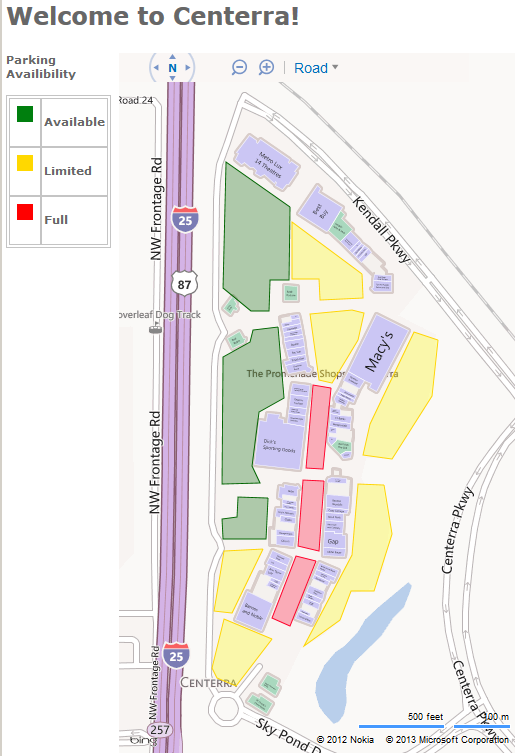
Available parking mapped on Bing
Venue map with SharePoint Mapper.

Frenemies - an enemy pretending to be your friend or someone who really is your friend but is also a rival.  I'd like to believe we are all in this together, out to make the best product, share it with the World and enjoy our success.

So as I develop the SharePoint Mapper I often find myself being surrounded by giants playing in the same arena.  Bing (Microsoft), Apple, Google and others are all involved in the indoor/venue mapping arena.  How will the PdocTech SharePoint Mapper fit in to this picture?


The concept is to offer enhancements to these products that allow users to control their data and the presentation.  Each of the big players is focused on issues like how to map the indoors, how to gain market share, how to control the use of the maps in a way that can be monetized.  The Mapper is focused on the individual and enterprise needs.  It allows an organization to take control of their mapping experience, control their data and to use it in the way that benefits the organization.  


So for today's demonstration I will be combining a Bing Venue map with the PdocTech SharePoint Mapper.  Using the Mapper over top of a venue map allows the individual organization to leverage Bing Maps to their fullest extent.  With the SharePoint Mapper an organization such as a mall can use the venue map for directory services for their campus and control both the content presented to the user and look and feel, allowing them to seamlessly integrate the map in to their own website.  


In this demonstration I am presenting the Centerra shopping area.  The venue map is loaded through the Bing services and the functionality over that venue map is provided though the SharePoint Mapper.  In addition to the store layouts provided by Bing I have extended the layout to include the parking areas.  Parking information can be updated by an administrator to let customers know where there is available parking.  


This is the a fairly simple demonstration, but the possibilities to extend the use of this technology are many and can get quite complex.  Custom map layers can be added over the entire site or just over an individual store or area.  Clicking on a store could be made to show store information, including custom advertisements that could be individually controlled by the store personnel.  Mall maintenance and security can also use this tool for assigning work order or to track activity on the mall.

Thanks for looking and as always please feel free to leave a comment.


P.S.  Bill Gates, Microsoft, Bing Maps... I'd like to be frenemies (or really just friends!). 


Monday, April 1, 2013

Creating a SharePoint Map Gallery

Map gallery coming soon! It will be hosted on www.pdoctech.com. In the meantime I am spending some time creating a few demonstrations and embedding them here on this blog... Grocery Store Indoor Mapper:
Hint: Click in aisle to see list of items in that aisle.  
 

SharePoint Mapper Indoor Mapping Demo

The SharePoint Mapper is both an Enterprise system and a cloud hosted mapping system.  The cloud hosted mapping system allows for the creation of complex, great looking maps that can be embedded in any website.  This feature basically eliminates the need to develop you own map hosting for your website.  Save money, save time...everyone is happy.

Whether you are looking to add a logo to a map or create a map application it is as simple as setting up an account, adding you content and embedding in your webpage.

I could blather on but instead I offer you this look at an embedded map: *  Map no longer embedded, click link for demo.

Adventure Works HQ Demo